> For the complete documentation index, see [llms.txt](https://requiply.gitbook.io/requiply-docs/llms.txt). Markdown versions of documentation pages are available by appending `.md` to page URLs; this page is available as [Markdown](https://requiply.gitbook.io/requiply-docs/knowledge/settings/organization-settings/features.md).

# Features

Turn optional Requiply functionality on or off for the whole organization: subrentals, QR codes and barcodes, pickup and return checklists, booking cost adjustments, sales of goods, and the Conversati

The **Features** page lets an organization admin turn optional organization-wide functionality on or off. Open **Settings → Organization → Features**, at [`https://app.requiply.com/settings/org/features`](https://app.requiply.com/settings/org/features).

Six features are available today:

| Feature                               | Default                                                                                                                        | Plan                           |
| ------------------------------------- | ------------------------------------------------------------------------------------------------------------------------------ | ------------------------------ |
| **Enable subrentals**                 | Off                                                                                                                            | Any                            |
| **Enable QR codes & barcodes**        | Off (on for organizations already on Advanced when the feature launched)                                                       | Advanced                       |
| ↳ **Primary barcode type**            | Code 128                                                                                                                       | Advanced                       |
| **Enable pickup & return checklists** | Off                                                                                                                            | Any                            |
| ↳ **Unit assignment**                 | Assign units at pickup                                                                                                         | Any                            |
| **Enable booking cost adjustments**   | Off                                                                                                                            | Any                            |
| ↳ **Adjustment types**                | All three for organizations turning it on now; **Charged periods** only for organizations that had it on before September 2026 | Any                            |
| **Enable sales**                      | Off                                                                                                                            | Advanced                       |
| **Enable conversations inbox** (Beta) | Off                                                                                                                            | Any (AI answers need Advanced) |

Toggles are not applied until you click **Save**; **Cancel** restores the last saved values.

Some features carry extra settings of their own. When such a feature is switched on, its settings appear underneath the description and are saved together with the toggle.

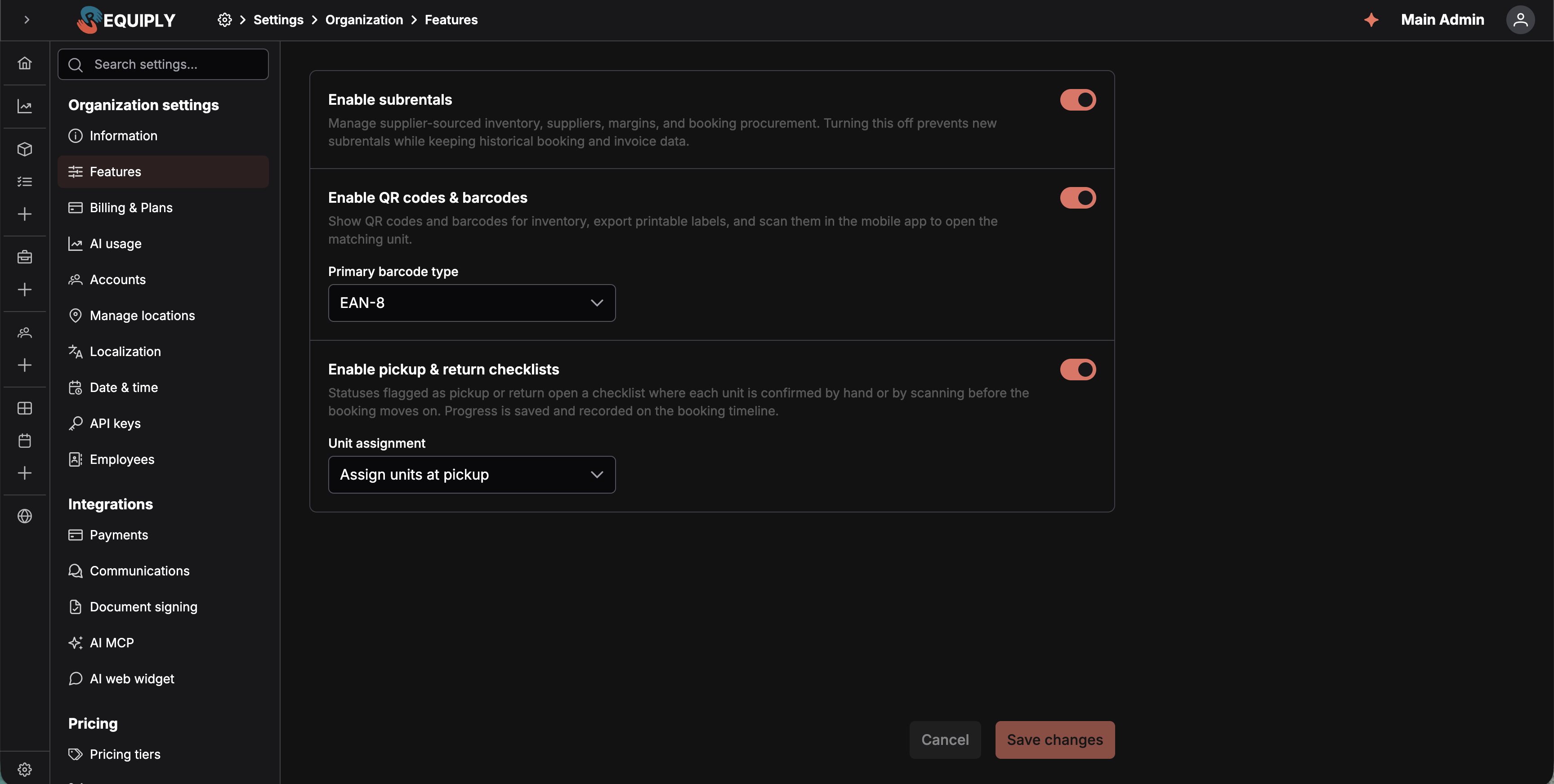
<figure><img src="https://572107616-files.gitbook.io/~/files/v0/b/gitbook-x-prod.appspot.com/o/spaces%2FCrrH3uq16OeTomix4tP8%2Fuploads%2Fgit-blob-ff51d134c6ea87b553135918b1f97ad9a9975a39%2Fpage.png?alt=media" alt="The Features page with three rows — Enable subrentals, Enable QR codes and barcodes, and Enable pickup and return checklists — each with a description and a toggle, all switched on; the barcode row carries a Primary barcode type dropdown set to EAN-8 and the checklist row a Unit assignment dropdown set to Assign units at pickup"><figcaption><p>Optional organization-wide features live on one page, each with its own description and toggle. Two of them carry a setting of their own, shown under the description once the feature is on. Nothing takes effect until <strong>Save</strong>. This screenshot predates the booking cost adjustments row, shown further down.</p></figcaption></figure>

## Enable subrentals

Subrentals are disabled by default. To start using them:

1. Turn on **Enable subrentals**.
2. Click **Save**.
3. Open **Settings → Bookings → Subrentals** to set the default margin and create suppliers.

Once enabled, Requiply adds subrental controls to inventory and booking workflows and makes the Subrentals settings entry visible. Supplier-sourced catalog products can also appear on the [client portal](/requiply-docs/knowledge/client-portal/client-portal.md).

### What happens when subrentals are disabled

Disabling the feature stops new subrental activity without removing historical records:

* Subrental settings and supplier entries disappear from the settings menu. Opening those URLs directly redirects to the Features page.
* Supplier-sourced catalog products are excluded from booking creation, the client portal, public item pages, and item showcases.
* Existing subrental catalog groups cannot be edited while the feature is off.
* Existing booking subrentals remain visible for financial and invoice history. Adding, editing, changing status, and assigning an invoice group are disabled; deletion remains available.
* Existing subrental lines remain available to invoice generation and historical reporting.

{% hint style="warning" %}
Disabling subrentals is not an archive or delete operation. Review in-progress procurement before turning the feature off because its status cannot be advanced until the feature is enabled again.
{% endhint %}

### API behavior

Supplier-sourced inventory is excluded from API inventory responses while the feature is disabled. Publishable-key inventory, quote, and booking-request flows exclude subrental products even when the feature is enabled. Use a secret key on a trusted server for enabled organizations that need API access to subrental catalog products.

## Enable QR codes & barcodes

*Show QR codes and barcodes for inventory, export printable labels, and scan them in the mobile app to open the matching unit.* The full feature is described under [QR codes and barcodes](/requiply-docs/knowledge/inventory/qr-and-barcodes.md).

This feature requires the **Advanced** plan:

* On Advanced, turn the toggle on and **Save**. Organizations that were already on Advanced when the feature shipped had it switched on automatically, so their existing QR codes kept working.
* On Core, the row carries an **Advanced** badge with a crown, the toggle is disabled, and the crown button opens **Choose your plan**, see [Billing & plans](/requiply-docs/knowledge/settings/organization-settings/billing.md).

When the feature is on:

* Item and item group pages show their QR code; item pages also show a **Barcodes** row with the unit's primary code, the other codes it carries, and a **Tie external barcode** action.
* **QR** and **Barcode** columns can be shown on [Manage inventory](/requiply-docs/knowledge/inventory/manage.md), and bulk **Export QRs** / **Export barcodes** actions appear.
* The mobile app's scan button opens the camera scanner.
* The QR and barcode rows and columns become available on [Detail page fields](/requiply-docs/knowledge/settings/fields/page-level-configurations.md) and [Table column layout](/requiply-docs/knowledge/settings/fields/table-level-configurations.md).
* A handheld scanner used in the **Units** field on [Add booking](/requiply-docs/knowledge/booking/add-booking.md) submits each scanned code automatically.

When it is off, all of the above is hidden. Codes are not deleted — they are generated automatically for every unit and come back unchanged when the feature is enabled again. Saved detail-page and table layouts keep their QR and barcode entries too, so nothing has to be reconfigured when the feature is switched back on.

### Primary barcode type

With the feature switched on, a **Primary barcode type** dropdown appears under it. It sets the kind of barcode the organization works with day to day; opening it shows an info icon beside each option with the explanation below:

| Option                 | Description                                                                                                                    |
| ---------------------- | ------------------------------------------------------------------------------------------------------------------------------ |
| **Code 128** (default) | *Industry standard that encodes any value and is read by virtually every scanner.* Units carry only their Requiply `RQ…` code. |
| **EAN-8**              | *Short 8-digit code that fits small labels on compact gear.* Every unit additionally gets a generated eight-digit EAN-8 code.  |

Choosing **EAN-8** and saving generates a code for every existing unit immediately, and new units get one on creation. Switching back to **Code 128** stops generation but keeps the codes already issued, because labels printed from them may already be on your equipment.

The choice also decides which code is printed on a unit's label and which label size the export dialog preselects — see [QR codes and barcodes](/requiply-docs/knowledge/inventory/qr-and-barcodes.md#choosing-a-primary-barcode-type).

## Enable pickup & return checklists

*Statuses flagged as pickup or return open a checklist where each unit is confirmed by hand or by scanning before the booking moves on. Progress is saved and recorded on the booking timeline.* This section covers the switch only: for what a checklist is and how staff work through one, see [Pickup and return checklists](/requiply-docs/knowledge/booking/checklists.md).

Available on every plan and off by default, so existing organizations are never redirected into a checklist unexpectedly.

When the feature is on, moving a booking into a status whose **Checklist** field is set to *Pickup checklist* or *Return checklist* opens that checklist first; the booking changes status only once every unit has been confirmed. The default statuses **Ready for pickup** (pickup), **In progress** (pickup) and **Completed** (return) carry those flags out of the box, and any status can be flagged or unflagged under [Booking statuses](/requiply-docs/knowledge/settings/booking-settings/booking-statuses.md#checklist).

The feature carries one option, **Unit assignment** — a dropdown under the description that decides *when* a booking gets its concrete units:

| Option                               | What it means                                                                                                                                                                                                                                     |
| ------------------------------------ | ------------------------------------------------------------------------------------------------------------------------------------------------------------------------------------------------------------------------------------------------- |
| **Assign units at pickup** (default) | Bookings reserve quantities only; the exact units are scanned or picked during the [pickup checklist](/requiply-docs/knowledge/booking/checklists.md#assigning-units-at-pickup). Good for larger warehouses where staff grab whatever is closest. |
| **Assign units at booking**          | Specific units are auto-assigned the moment a booking is created. Good for small inventories where staff hand over exactly the reserved unit.                                                                                                     |

Turning checklists on therefore switches an organization to pickup-time assignment unless you pick the other option. **While the feature is off, units are always assigned at booking creation** — the option only applies once checklists are running.

Availability is identical in both modes — a booking holds its reserved quantities from the moment it is created either way.

Whichever option is set, staff can also pin **specific units** while creating a booking, by scanning or typing unit codes on [Add booking](/requiply-docs/knowledge/booking/add-booking.md) or in the mobile app. That needs **Allow assigning units on creation** under [Booking creation](/requiply-docs/knowledge/settings/booking-settings/booking-creation.md) and the **Allow assigning units on booking creation** permission in the member's [group](/requiply-docs/knowledge/settings/organization-settings/accounts/groups.md). Pinned units are assigned immediately; with **Assign units at pickup**, only the rest of the quantity waits for the checklist.

When it is off, the flags are ignored and every status changes directly. Checklists already confirmed stay on the booking timeline.

## Enable booking cost adjustments

*Members with the matching permission can adjust what a booking is charged: fewer or more periods than its dates produce, a percentage off the total, or a flat amount. The adjustment is stored on the booking and applied to invoices, documents and later date or item changes.* The full feature is described under [Booking cost adjustment](/requiply-docs/knowledge/booking/chargeable-period.md).

Available on every plan and off by default. Until September 2026 this feature was called **Enable chargeable period adjustment** and only offered charged periods.

### Adjustment types

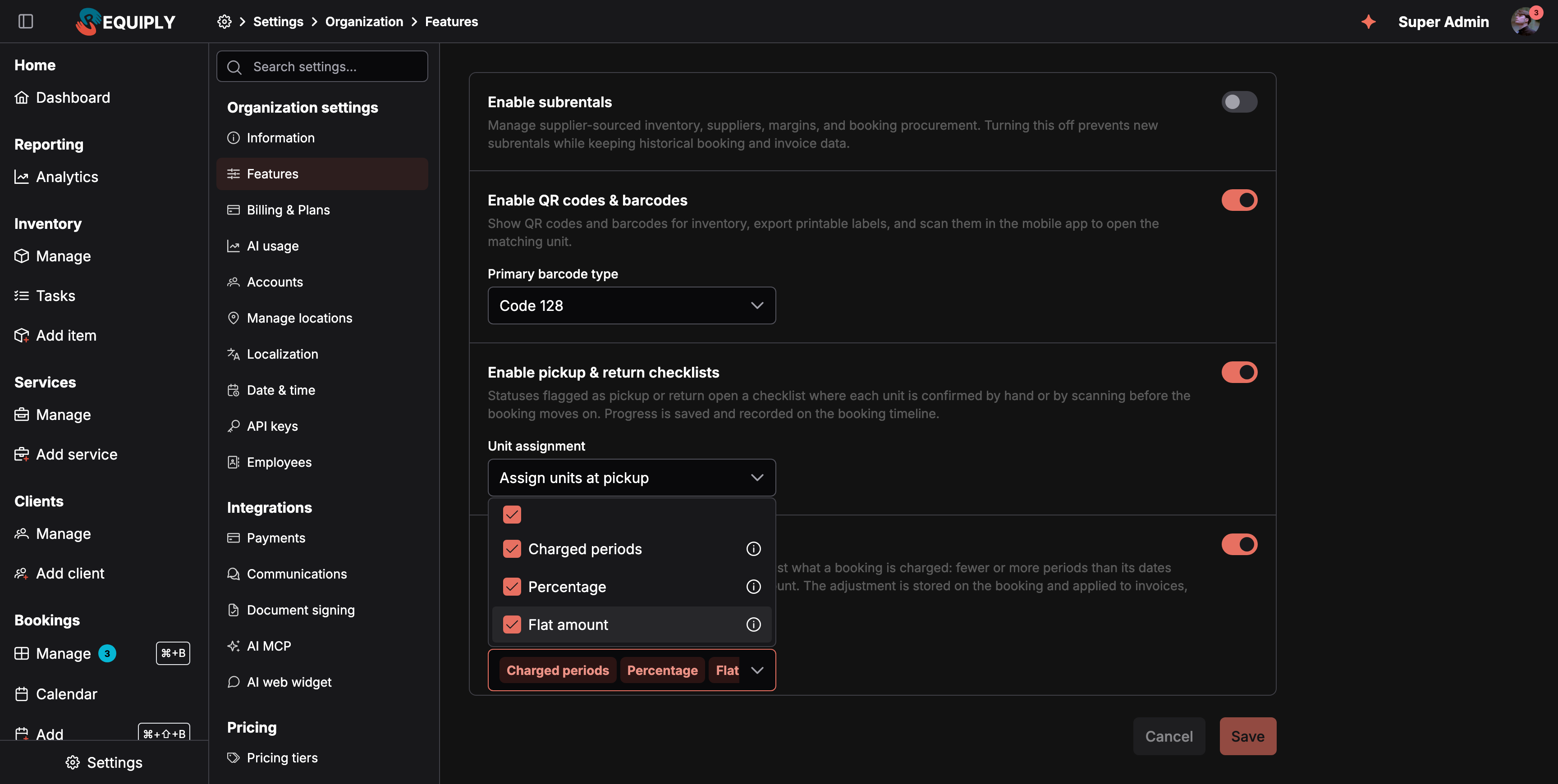
While the feature is on, an **Adjustment types** field under the description lists what staff may use. Each option has an info icon with a short explanation:

| Option              | What staff can do                                                                                                                 |
| ------------------- | --------------------------------------------------------------------------------------------------------------------------------- |
| **Charged periods** | Charge a booking for fewer or more days or months than its dates produce, for example half a day off for a Friday evening pickup. |
| **Percentage**      | Take a percentage off the booking total, or add one on top, after the client discount.                                            |
| **Flat amount**     | Move the booking total by a flat sum in your currency.                                                                            |

*Pick at least one. With a single type the booking form shows that editor with no picker.* The last ticked option cannot be removed.

<figure><img src="https://572107616-files.gitbook.io/~/files/v0/b/gitbook-x-prod.appspot.com/o/spaces%2FCrrH3uq16OeTomix4tP8%2Fuploads%2Fgit-blob-1ebd8921890b47c3e24f1b6e953608bf222728ab%2Fbooking-cost-adjustments.png?alt=media" alt="The Features page with Enable pickup and return checklists and Enable booking cost adjustments switched on. The Adjustment types list is open and shows Charged periods, Percentage and Flat amount, all ticked, each with an info icon."><figcaption><p>The Adjustment types list of <strong>Enable booking cost adjustments</strong>, with all three types allowed.</p></figcaption></figure>

Organizations that switch the feature on for the first time get all three types. Organizations that already used the chargeable period adjustment keep **Charged periods** only until an admin ticks the others and saves.

If you later untick a type, bookings that already use it keep their adjustment. Staff can still see it and reset it or replace it with an allowed type.

### What staff get

When the feature is on, members whose [permission group](/requiply-docs/knowledge/settings/organization-settings/accounts/groups.md) has **Allow booking cost adjustments** get:

* a **Booking cost adjustment:** block on [Add booking](/requiply-docs/knowledge/booking/add-booking.md) and in the mobile app's booking creation,
* a **Booking cost adjustment** row with a pencil on the booking detail page, which opens **Edit booking cost adjustment**,
* the **Booking cost adjustment** booking row on [Detail page fields](/requiply-docs/knowledge/settings/fields/page-level-configurations.md).

The **Administrators** group has the permission by default. Other groups need it switched on.

When the feature is off, the controls and the booking row disappear. Adjustments already saved on bookings keep applying to totals, invoices, documents, and later date, item, or service changes.

## Enable sales

*Sell consumables like memory cards and batteries, on bookings or on their own, with stock tracking, reorder notifications and returns.* The module is described under [Sales](/requiply-docs/knowledge/sales/sales.md).

Off by default. Reorder notifications mentioned in the description are not sent yet.

Since 30 September 2026 this feature requires the **Advanced** plan:

* On Advanced, turn the toggle on and **Save**.
* On Core, the row carries an **Advanced** badge with a crown, the toggle is disabled, and the crown button opens **Choose your plan**, see [Billing & plans](/requiply-docs/knowledge/settings/organization-settings/billing.md).
* An organization that moves from Advanced to Core keeps its products, stock, and sales, but Sales reads as off until it is back on Advanced.

When the feature is on:

* **Rental object type** on [Add item](/requiply-docs/knowledge/inventory/add-item.md) offers **Equipment for sale**, a product with a stock count instead of units. See [Sale items and stock](/requiply-docs/knowledge/sales/sale-items.md).
* The sidebar gets a **Sales** section with **Sales** and **New sale** for members whose [permission group](/requiply-docs/knowledge/settings/organization-settings/accounts/groups.md#sales) has a Sales permission.
* Bookings get a **Sold items** row and the **Sell items** and **Return items** actions. See [Sell items on a booking](/requiply-docs/knowledge/booking/sell-items.md).
* The mobile app offers a **Sales** tab under **More**.

The **Administrators** group has all three Sales permissions by default. Other groups need them switched on under [Permission groups](/requiply-docs/knowledge/settings/organization-settings/accounts/groups.md#sales).

If you or your group customized the sidebar before, saving opens a dialog: **Sales is on, but not in your menu yet**, with links to your account's menu editor and to the **User groups** tab. Add the Sales section there, see [Sidebar menu layout](/requiply-docs/knowledge/settings/menu-layout.md#optional-sections-such-as-sales).

When the feature is off, the Sales pages, the **Sold items** row, and the sale actions disappear, and `/sales/...` addresses redirect to this page. Products for sale stay in the inventory, and sold goods stay inside the totals of the bookings they were sold on.

## Enable conversations inbox

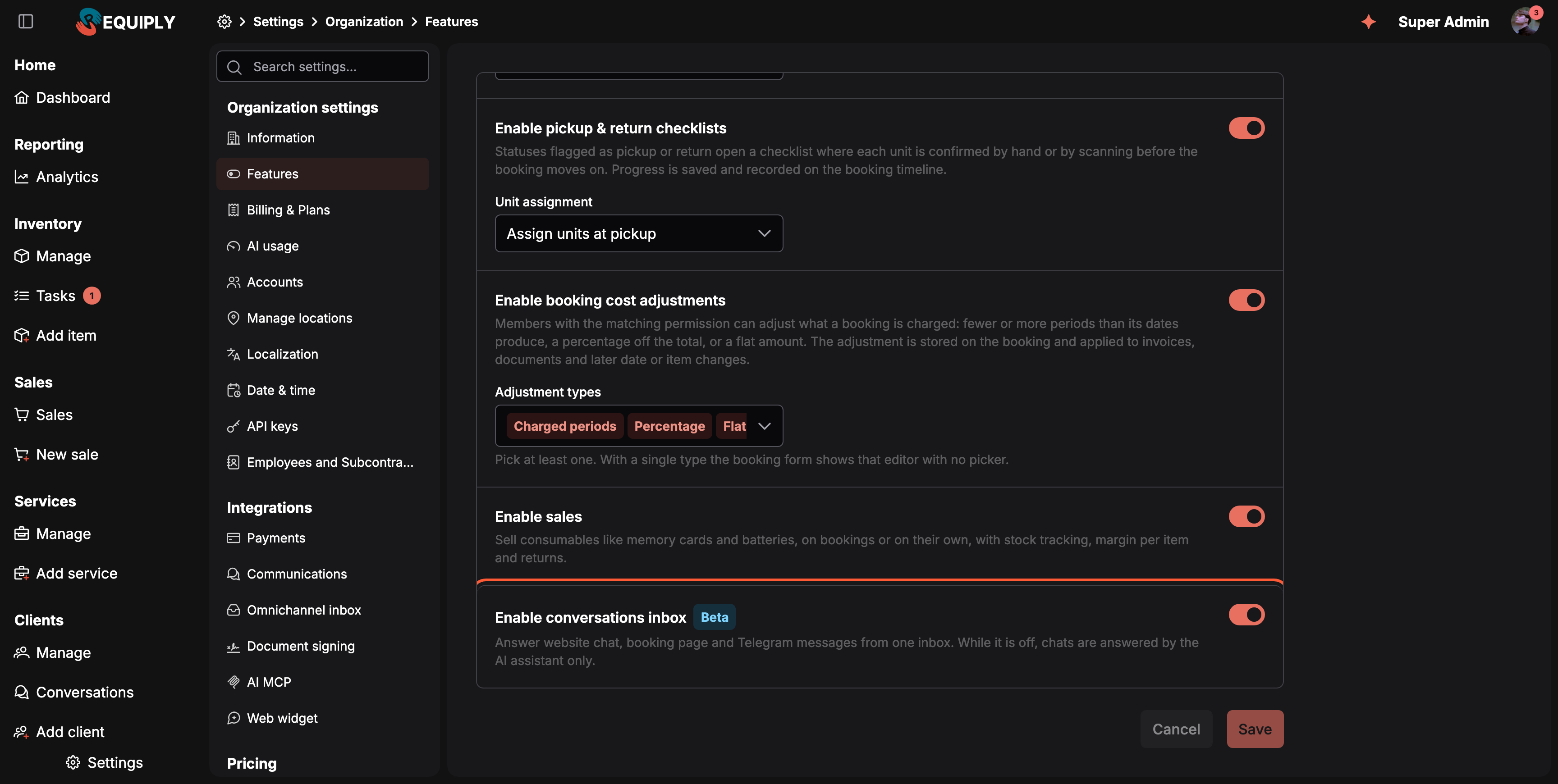
*Answer website chat, booking page and Telegram messages from one inbox. While it is off, chats are answered by the AI assistant only.* The inbox is described under [Conversations inbox](/requiply-docs/knowledge/conversations/conversations.md).

The row carries a **Beta** tag. It is off by default for every organization, including existing ones.

<figure><img src="https://572107616-files.gitbook.io/~/files/v0/b/gitbook-x-prod.appspot.com/o/spaces%2FCrrH3uq16OeTomix4tP8%2Fuploads%2Fgit-blob-3575414400b9324fe3f3f1631026f6767dad421c%2Fconversations-inbox.png?alt=media" alt="The Features page scrolled to the bottom. The highlighted last row reads Enable conversations inbox with a blue Beta tag and the description: Answer website chat, booking page and Telegram messages from one inbox. While it is off, chats are answered by the AI assistant only. Its toggle is on"><figcaption><p>The inbox is switched on here, for the whole organization.</p></figcaption></figure>

The inbox, the channels and answering by hand work on every plan. Letting the AI assistant answer first needs the **Advanced** plan.

When the feature is on:

* The sidebar gets **Conversations** under **Clients**, with a badge for conversations waiting for your team, for members whose [permission group](/requiply-docs/knowledge/settings/organization-settings/accounts/groups.md) has **Allow access to conversations**.
* **Settings → Integrations → Omnichannel inbox** appears for administrators, where Telegram and OLX are connected, see [Omnichannel inbox settings](/requiply-docs/knowledge/settings/integrations/omnichannel.md).
* The OLX card appears under [Communications](/requiply-docs/knowledge/settings/integrations/communications.md#olx).
* Client pages can show a **Conversations** row, see [Client details](/requiply-docs/knowledge/clients/client-details.md#conversations).
* Each member gets a **Notifications** tab under **Account** for conversation push notifications.
* The mobile app offers a **Conversations** tab under **More**.
* Your Telegram bot also delivers clients' messages to the inbox once the Telegram channel is connected.

When the feature is off, everything works as before the inbox: the website and portal chats are answered by the AI assistant only (on Advanced), Telegram keeps sending workflow notifications, and `/conversations` redirects to this page. Conversations already in the inbox are kept and come back when the feature is turned on again.