> For the complete documentation index, see [llms.txt](https://requiply.gitbook.io/requiply-docs/llms.txt). Markdown versions of documentation pages are available by appending `.md` to page URLs; this page is available as [Markdown](https://requiply.gitbook.io/requiply-docs/knowledge/settings/booking-settings/export-templates.md).

# Custom export templates

Design the printable PDFs you generate from a rental, such as the rental agreement, contract, handover act, return act, or packing sheet.

The **Custom export templates** page is where admins design the printable PDF documents Requiply generates from a booking — rental agreements, handover and return acts, pickup checklists, internal packing sheets, or any other paperwork your business hands to a client or files internally.

**This is where a rental contract comes from.** Write the wording once here, and every booking can then be printed or emailed as a finished contract with the customer's name, dates, items, and prices already filled in. To print one for a particular booking, open the booking and export it: see [Booking documents](/requiply-docs/knowledge/booking/documents.md).

You can find this page under **Settings → Bookings → Custom export templates**.

{% hint style="warning" %}
**Admin only.** Other staff are redirected to the access-denied screen.
{% endhint %}

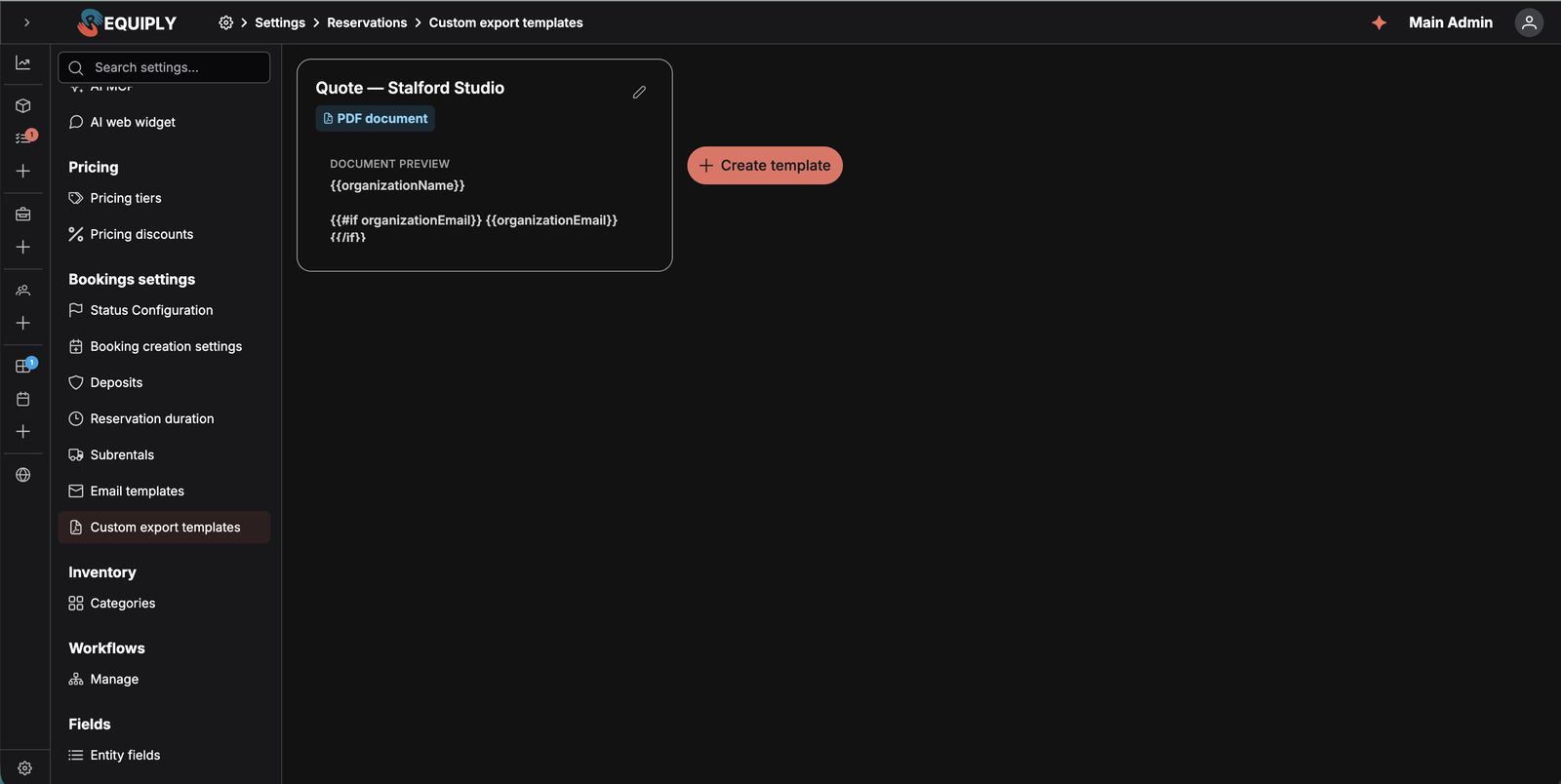
<figure><img src="https://572107616-files.gitbook.io/~/files/v0/b/gitbook-x-prod.appspot.com/o/spaces%2FCrrH3uq16OeTomix4tP8%2Fuploads%2Fgit-blob-d2e8bf3dbecd61e27b6d6e451dcb7c4cd25dd65b%2Flist.png?alt=media" alt="Custom export templates page showing a template card with a PDF document badge and document preview, next to the Create template button"><figcaption><p>Each template appears as a card with a <strong>PDF document</strong> badge and a plain-text preview of its body.</p></figcaption></figure>

## Why this page matters

Requiply already generates an invoice from every booking. Export templates cover everything else. Once a template exists, it appears in the **Export** dialog on any booking, and staff can produce a filled-in, print-ready PDF for that specific booking in one click — no copying booking data into a Word file.

Typical documents organizations build here:

* A **rental agreement** listing the parties, booking dates, equipment table, charges, deposit, and signature lines.
* A **handover and return act** with condition notes and acknowledgements for both directions.
* A **pickup or packing sheet** for the warehouse team.
* A **damage or incident report** pre-filled with the booking and client details.

## Who can use this page

* **Admins only.** Users without the admin role are redirected to the access-denied screen.
* There is no plan limit or feature flag on templates — every organization can create as many as it needs.
* **Using** a finished template is not admin-restricted. Anyone who can open a booking's **Export** dialog can generate the document.

## What you'll see

The page loads the templates for the current organization and shows them as a wrapping grid of cards. While loading, three skeleton placeholders appear in the same layout.

Each template card shows:

* The template **name** (truncated with a tooltip on hover).
* A **PDF document** badge.
* A **Document preview** box containing the first lines of the document body rendered as plain text.
* An **edit** (pencil) button that opens the [Add or edit export template](/requiply-docs/knowledge/settings/booking-settings/export-templates/add-or-edit.md) page.

After the cards, a rounded **Create template** button with a plus icon opens the add page.

## Empty state

Requiply ships **no built-in export templates**. A new organization starts with zero, and the booking **Export** dialog offers only **PDF Invoice** until the first template is created.

When the list is empty, the page shows a centered placeholder with a PDF icon, the title **"No custom export templates yet"**, the subtitle *"Create printable documents like rental agreements or handover acts, filled with booking data on export"*, and a **Create template** action.

## Main actions

### Adding a template

**Create template** — from either the plus button or the empty state — opens the [Add or edit export template](/requiply-docs/knowledge/settings/booking-settings/export-templates/add-or-edit.md) page. After saving, you return to the list and a toast confirms `Document template "<name>" created`.

### Editing a template

The pencil icon on a card opens the same page in edit mode, with **Save** and **Delete** actions.

### Deleting a template

Deletion happens from the edit page behind a simple confirmation dialog. Unlike email templates, export templates are not referenced by workflow automations, so there is no reference check — the delete goes through immediately once confirmed.

{% hint style="warning" %}
**Heads up:** Deleting a template removes it from the **Export** dialog for everyone straight away. Documents already downloaded are unaffected, but the template cannot be recovered.
{% endhint %}

## Available variables

The document body is plain HTML with `{{variable}}` tokens. At export time Requiply replaces each token with data from the booking the document is generated for.

### Booking, client, and organization variables

| Variable                      | Replaced with                                                                                                                                                                                                                                                                                 |
| ----------------------------- | --------------------------------------------------------------------------------------------------------------------------------------------------------------------------------------------------------------------------------------------------------------------------------------------- |
| `{{documentDate}}`            | The date the document is generated (today, in the organization's timezone).                                                                                                                                                                                                                   |
| `{{clientName}}`              | The client's full name.                                                                                                                                                                                                                                                                       |
| `{{clientFirstName}}`         | The client's first name.                                                                                                                                                                                                                                                                      |
| `{{clientLastName}}`          | The client's last name.                                                                                                                                                                                                                                                                       |
| `{{clientEmail}}`             | The client's email address.                                                                                                                                                                                                                                                                   |
| `{{clientPhone}}`             | The client's phone number.                                                                                                                                                                                                                                                                    |
| `{{bookingId}}`               | The booking number as shown in Requiply.                                                                                                                                                                                                                                                      |
| `{{bookingStartDate}}`        | The booking's start date.                                                                                                                                                                                                                                                                     |
| `{{bookingStartDateTime}}`    | The booking's start date and time.                                                                                                                                                                                                                                                            |
| `{{bookingEndDate}}`          | The booking's end date.                                                                                                                                                                                                                                                                       |
| `{{bookingEndDateTime}}`      | The booking's end date and time.                                                                                                                                                                                                                                                              |
| `{{bookingStatus}}`           | The booking's current status name.                                                                                                                                                                                                                                                            |
| `{{bookingTotal}}`            | The booking total, formatted in the organization's currency.                                                                                                                                                                                                                                  |
| `{{bookingDeposit}}`          | The security deposit amount (empty when there is no deposit).                                                                                                                                                                                                                                 |
| `{{bookingTotalCharged}}`     | Rental total plus deposit.                                                                                                                                                                                                                                                                    |
| `{{bookingAdjustment}}`       | The booking's [cost adjustment](/requiply-docs/knowledge/booking/chargeable-period.md): *−1 period* or *+2 periods* for charged periods, *−10%* for a percentage, the plain number such as *−25* for a flat amount. Empty without an adjustment. Not in the variable picker, type it by hand. |
| `{{bookingAdjustmentReason}}` | The reason given for the adjustment. Not in the variable picker.                                                                                                                                                                                                                              |
| `{{bookingAdjustmentAmount}}` | The money effect of a percentage or flat adjustment, for example *−$9.00*. Empty for charged periods. Not in the variable picker.                                                                                                                                                             |
| `{{bookingItems}}`            | A full HTML table of the booked items. Prints SKU, name, quantity, price, and total by default; see [Choosing the table columns](#choosing-the-table-columns).                                                                                                                                |
| `{{bookingServices}}`         | A full HTML table of the services on the booking. Prints name, price, and total by default; see [Choosing the table columns](#choosing-the-table-columns).                                                                                                                                    |
| `{{bookingSaleItems}}`        | A table of the goods sold on the booking ([Sales](/requiply-docs/knowledge/sales/sales.md)), net of returns. Prints name, quantity, price, and total by default; see [Sold items table columns](#sold-items-table-columns). Empty when nothing was sold.                                      |
| `{{bookingSaleTotal}}`        | The total of the sold goods, already included in `{{bookingTotal}}`. Empty when nothing was sold.                                                                                                                                                                                             |
| `{{organizationName}}`        | The organization's name.                                                                                                                                                                                                                                                                      |
| `{{organizationEmail}}`       | The organization's contact email.                                                                                                                                                                                                                                                             |
| `{{organizationPhone}}`       | The organization's contact phone number.                                                                                                                                                                                                                                                      |

{% hint style="info" %}
`{{bookingItems}}` and `{{bookingServices}}` insert a complete table, not a value. Put them on their own line rather than inside a sentence. Their column headers are localized to the organization's language, and prices use the organization's currency.
{% endhint %}

### Choosing the table columns

Written plainly, `{{bookingItems}}` prints its default columns. Add a **column list in square brackets** and the table prints exactly the columns you name, in the order you name them:

```
{{bookingItems[index, name, serial, qty, price, total]}}
```

Entries are comma separated and unquoted. An unknown entry is ignored. Without brackets the defaults are used: SKU, name, quantity, price, and total for items, and name, price, and total for services.

#### Item table columns

| Column                   | Prints                                                                   |
| ------------------------ | ------------------------------------------------------------------------ |
| `index`                  | Row number.                                                              |
| `sku`                    | SKU, the organization identifier.                                        |
| `serial`                 | The unit's manufacturer serial number.                                   |
| `name`                   | Product name.                                                            |
| `category`               | Category.                                                                |
| `qty`                    | Quantity.                                                                |
| `price`                  | Price per unit.                                                          |
| `priceType`              | Rate: per day, per hour, per month, or fixed.                            |
| `deposit`                | Deposit per unit.                                                        |
| `full_price`             | Full price, what the equipment cost you.                                 |
| `total`                  | Line total.                                                              |
| `itemField_<field key>`  | A custom field defined on the **unit** level.                            |
| `groupField_<field key>` | A custom field defined on the **product** level.                         |
| `blank:Label`            | An empty column with *Label* as its header, for cells filled in by hand. |

#### Service table columns

`index`, `name`, `price`, `priceType`, `total`, and `blank:Label`.

#### Sold items table columns

`index`, `sku`, `name`, `qty`, `price`, `total`, and `blank:Label`. Without brackets it prints `name`, `qty`, `price`, and `total`, for example `{{bookingSaleItems[index, sku, name, qty, price, total]}}`.

{% hint style="info" %}
**Per-unit columns split the rows.** `serial` and any `itemField_*` column describe one physical unit, so including either prints **one row per unit** instead of one row per product line. A line of 3 tripods becomes three rows, each with its own serial number.
{% endhint %}

{% hint style="info" %}
**Empty columns disappear.** `serial` and `full_price` are dropped from the printed table when no row has a value, so a document does not carry a column of blanks. `blank:Label` is the exception: it is meant to be empty and always prints.
{% endhint %}

{% hint style="success" %}
**Tip:** `blank:Condition` and `blank:Signature` turn an items table into a handover act that staff and client fill in with a pen at the counter.
{% endhint %}

### Custom field variables

Every custom field configured on the **Client**, **Booking**, or **Organization** level is also available as a variable. Requiply builds the token from the field's key with a level prefix:

| Entity level | Token pattern                       | Example                            |
| ------------ | ----------------------------------- | ---------------------------------- |
| Client       | `{{clientField_<field key>}}`       | `{{clientField_passport_number}}`  |
| Booking      | `{{bookingField_<field key>}}`      | `{{bookingField_delivery_notes}}`  |
| Organization | `{{organizationField_<field key>}}` | `{{organizationField_vat_number}}` |

These appear in the **Insert variable** dropdown alongside the built-in ones, labelled with the field name and its level — for example `Passport number (Client)`. Checkbox fields render as a localized **Yes**/**No**, and multiselect fields render as a comma-separated list.

See [Entity fields](/requiply-docs/knowledge/settings/fields/entity-fields.md) to create a field and [Level configurations](/requiply-docs/knowledge/settings/fields/level-configurations.md) to attach it to the Client, Booking, or Organization level.

### Conditional blocks

Export templates support one piece of logic: an optional block that only prints when a variable has a value.

```html
{{#if bookingDeposit}}
  <p>Security deposit held: {{bookingDeposit}}</p>
{{/if}}
```

The block content is kept when the variable resolves to a non-empty value and removed entirely when it does not. Blocks can be nested. There are no `else` branches, loops, or comparisons — anything else is left in the document as literal text.

{% hint style="info" %}
Conditional blocks are an **export template** feature. Email templates do not support them.
{% endhint %}

## How documents are generated

When someone exports a document from a booking:

1. Requiply loads the template and the booking.
2. Conditional blocks are resolved, then every token is substituted with the booking's data. Text values are HTML-escaped so a client name or note cannot break the layout; the item and service tables are inserted as HTML.
3. The result is rendered to an **A4 PDF** with 15 mm margins.
4. The file downloads as `<template name>-<booking number>.pdf`.

Dates and times are formatted in the organization's timezone from [Date & time settings](/requiply-docs/knowledge/settings/organization-settings/date-time-settings.md), and amounts use the organization's currency. Table headers and Yes/No values follow the organization's language.

## Where templates are used

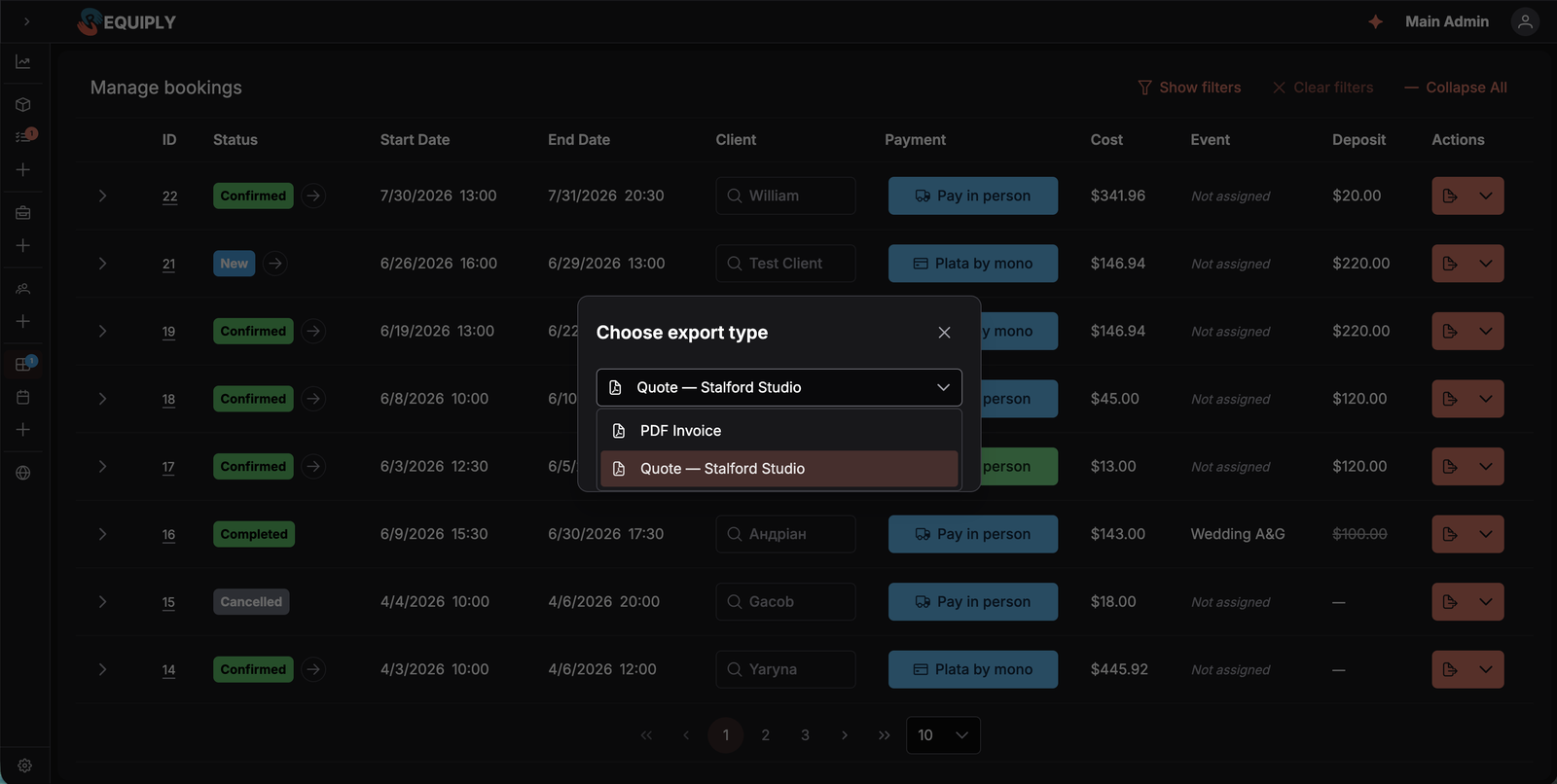
<figure><img src="https://572107616-files.gitbook.io/~/files/v0/b/gitbook-x-prod.appspot.com/o/spaces%2FCrrH3uq16OeTomix4tP8%2Fuploads%2Fgit-blob-c409823b80752447af508160846a26740cd8f209%2Fexport-dialog.png?alt=media" alt="The Choose export type dialog on the bookings table with the select open, listing PDF Invoice and a custom document template"><figcaption><p>The <strong>Choose export type</strong> dialog lists the PDF invoice first, then every export template by name.</p></figcaption></figure>

Templates appear in the **Export** dialog, which staff reach from:

* The per-row **Export** split button on [Manage bookings](/requiply-docs/knowledge/booking/manage.md).
* The export action on a booking's detail page.

The dialog is headed **Choose export type** and lists **PDF Invoice** first, followed by every export template by name. Picking a template and confirming generates and downloads that document for the booking.

## Common scenarios

### Building a rental agreement

1. Open **Create template** and name it `Rental agreement`.
2. Leave the body editor in **HTML** mode and lay out the sections: parties, booking period, equipment, charges, responsibilities, signatures.
3. Insert `{{organizationName}}`, `{{clientName}}`, `{{bookingStartDateTime}}`, `{{bookingEndDateTime}}`, and `{{bookingItems}}` from the **Insert variable** dropdown.
4. Wrap the deposit paragraph in `{{#if bookingDeposit}}…{{/if}}` so it disappears on deposit-free bookings.
5. Check the live preview, then save.

### Letting the assistant draft it

Click **Create with Requiply Assistant** next to the body editor and describe the document you need. The assistant returns a complete print-ready draft with the correct tokens already in place, which you apply to the editor in one click. See [Requiply Assistant](/requiply-docs/knowledge/requiply-assistant/assistant.md).

### Capturing business-specific data

If your agreement needs a passport number, a VAT code, or a delivery address that Requiply does not store by default, create it as a custom field on the Client, Booking, or Organization level first. It then shows up in the **Insert variable** dropdown for every template.

## Tips and cautions

{% hint style="success" %}
**Tip:** Build documents in **HTML** mode. Contracts and acts need tables, headings, and page structure that the rich-text editor will simplify.
{% endhint %}

{% hint style="success" %}
**Tip:** Use `{{#if …}}` for anything optional — deposits, delivery notes, custom fields that are only sometimes filled in. It keeps one template usable for every booking instead of maintaining several near-identical ones.
{% endhint %}

{% hint style="warning" %}
**Heads up:** The live preview uses sample booking data, not a real booking. Export a real booking once after building a template to confirm the tables and amounts land where you expect.
{% endhint %}